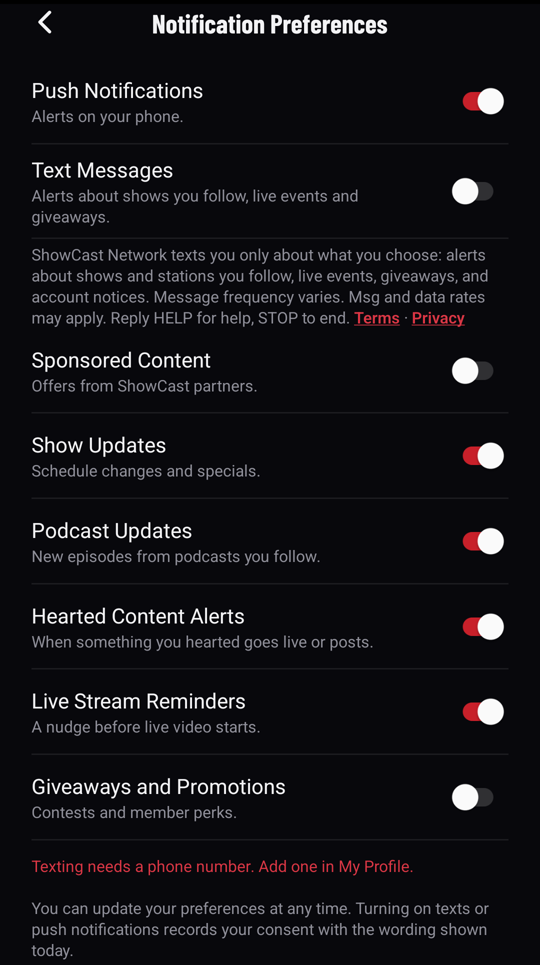
Text alerts
Texts only when you ask for them.
ShowCast Network sends text alerts about the shows and stations you follow, live events, giveaways, and notices about your account. Texts only go to people who switch them on in the ShowCast Network app.
How to turn texts on
- 1Open the ShowCast Network app and sign in, or create an account.
- 2Add your mobile number under Profile, My Profile.
- 3Go to Profile, Notification Preferences. Text Messages starts switched off.
- 4Switch Text Messages on. The disclosure shown beside the switch, below, is recorded with your consent.
You can also choose texts when you create your account in the app. That choice also starts off.
The words beside the switch
ShowCast Network texts you only about what you choose: alerts about shows and stations you follow, live events, giveaways, and account notices. Message frequency varies. Msg and data rates may apply. Reply HELP for help, STOP to end.
Stopping texts and getting help
Reply STOP to any ShowCast Network text and they stop right away; you get one message confirming it. Reply START to turn them back on. Reply HELP for help, or switch Text Messages off in the app at any time. Message frequency varies. Message and data rates may apply.
Your mobile number and your consent are never sold, and never shared with third parties or affiliates for their marketing. Turning on texts is never a condition of any purchase or membership.
An example
ShowCast Network: Treasure Coast Radio is live now. Listen at showcastnetwork.com. Reply STOP to opt out.
Read the Terms and the Privacy Policy, or contact us.